Wednesday, March 8, 2023

How to recover your Facebook account

 1: Recovering your Facebook account via Google account saved passwords


1.

Go to your Google account. You can also access that via Google Chrome.

2.

Go to the 'Security’ section and scroll down to 'Password manager'

3.

You will see your Facebook password if you ever saved it on your Google account. Just click on the preview icon and your password will be shown.

4.

Log into your Facebook account with the password you recovered.

google account kaise banaye


Google Account

Introduction

Creating a Google account is fairly simple. You'll need to provide some basic information, like your name, age, and location. Once you create and verify your account, you'll be able to use Gmail, Google DocsGoogle Calendar, and many other services.

In this lesson, we'll show you how to create an account.

Creating an account

In order to create a Google account, you'll need to enter some information, like your namebirth date, and location. Creating a Google account will automatically create a Gmail email address.

If you have a Gmail address, you already have a Google account so you won't need to create an account. You can simply sign in to Google using your Gmail information.

To create a Google account:

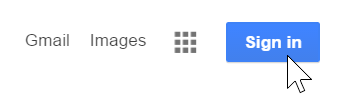
  1. Go to www.google.com. Locate and select the Sign in button in the top-right corner of the page.
    Sign in
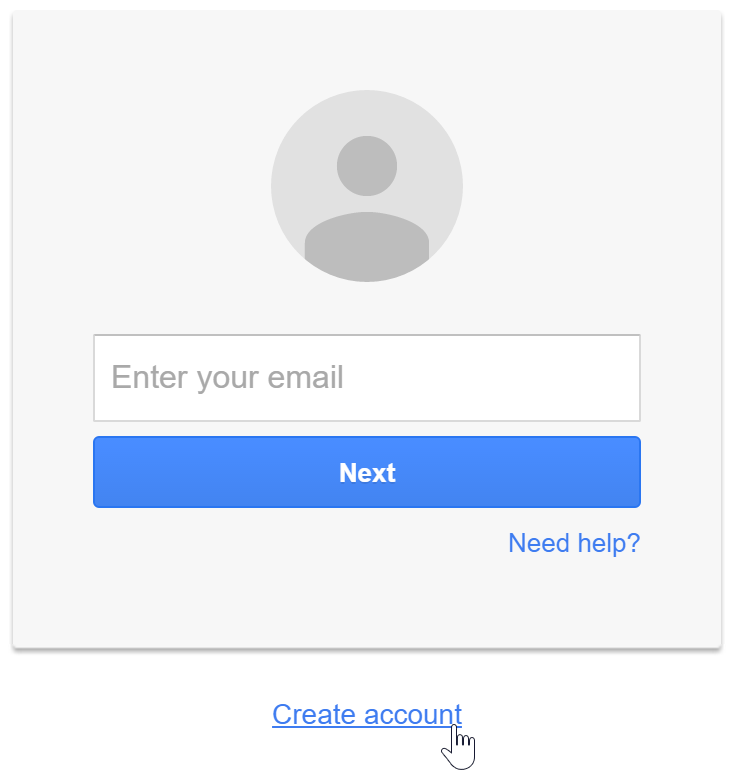
  2. Click Create an account.
    Create an account
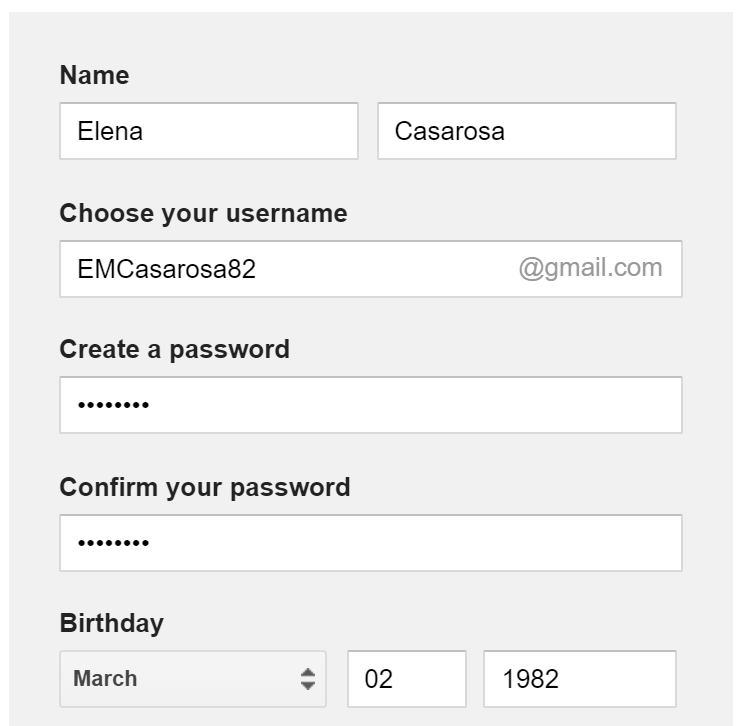
  3. The signup form will appear. Follow the directions by entering the required information, such as your name, birth date, and gender.
    Sign up form
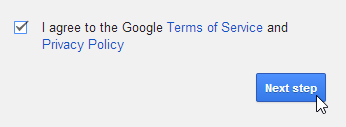
  4. Review Google's Terms of Service and Privacy Policy, click the checkbox, then click Next step.
    Privacy agreement
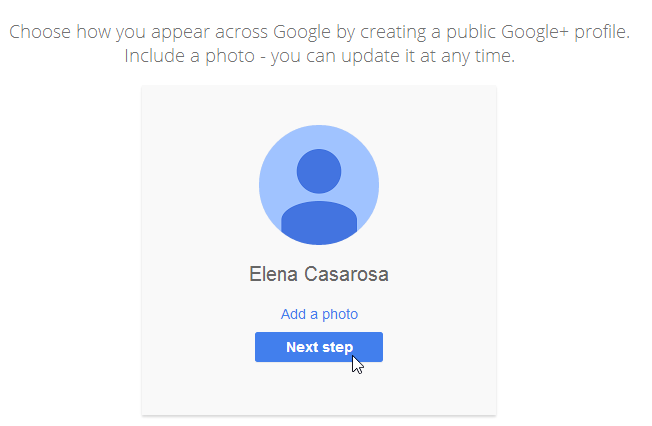
  5. The Create your profile page will appear. Click Add a photo if you want to add a photo to your profile. If you don't want to set a profile photo at this time, click Next step.
    Next step
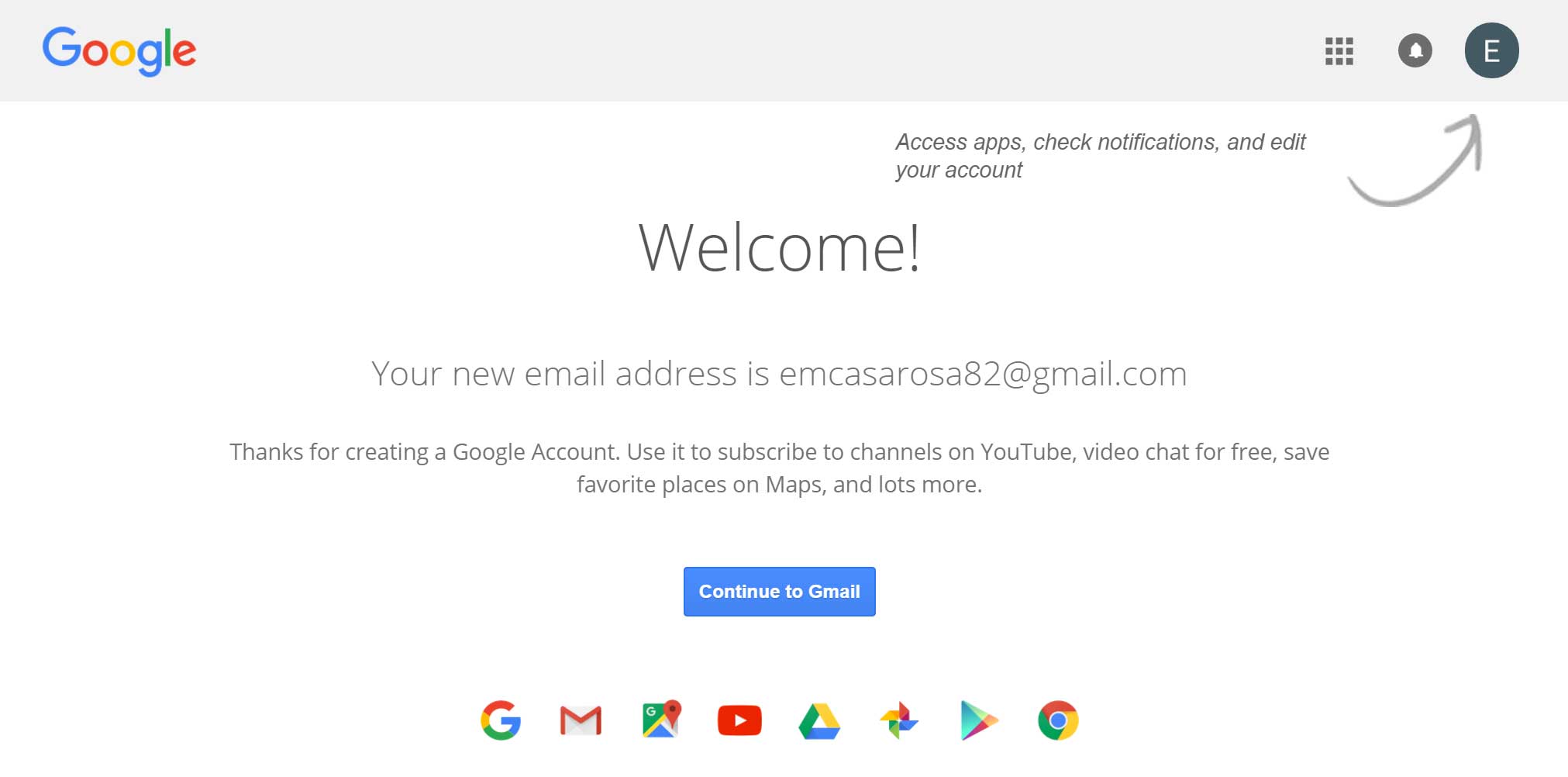
  6. Your account will be created, and the Google welcome page will appear.
    Welcome page

Just like with any online service, it's important to choose a strong password—in other words, one that is difficult for someone else to guess. For more information, review this Creating Strong Passwords lesson from our Internet Safety tutorial.

Monday, March 6, 2023

how to create a mobile app


1. Create an Android Project


Before you can start coding your app, you will need to create a new Android project. Using Android Studio, open the ‘Start a new Android Studio project’ window and fill out the required fields.


2. Design the User Interface


The user interface (UI) is the visual layout of your app. It provides a way for users to interact with your app. You can design the UI using XML or by using the Android Studio Layout Editor.


3. Code the App Logic


Once you have designed the UI, you will need to code the logic of the app. This can be done in the Java programming language. Android Studio provides many helpful tools to make coding easier.


4. Test the App


Testing is an important part of the development process. You can use the Android emulator to test your app on different devices and configurations. You should also test your app on real devices.


5. Publish the App


Once you have tested your app and it is ready for release, you can publish it on the Google Play store. You will need to create a Google developer account and pay a one-time registration fee.

Sunday, March 5, 2023

How to photo resize


How to resize an image using the Photos app

The Photos app is probably the easiest way you can resize any image you want to. It's very quick and simple, assuming you just want to resize a couple of images. Here's what you need to do:

  • Open the image you want to resize using the Photos app.
  • Open website www.picresize.com.
    * Select file image
  • Click to continue
  • Click the ellipsis button on the menu bar at the top, the click Resize.
    Fil to image size in box
  • Click to continue
  • Resized image in save to disk

  • Choose from the default size options provided. You can also choose Define custom
  •  dimensions if you want to set a specific size.

Saturday, March 4, 2023

How to start blog


Are you looking for an easy guide on how to start a blog?

The step-by-step guide on this page will show you how to create a blog in 20 minutes with just the most basic computer skills.

After completing this guide you will have a beautiful blog that is ready to share with the world.

This guide is made especially for beginners. I will walk you through each and every step, using plenty of pictures and videos to make it all perfectly clear.

If you get stuck or have questions at any point, simply send me a message and I will do my best to help you out.

Ready to start? Click here to skip the intro and start building your blog now
How to start a blog for beginners

My name is Scott Chow, and I am going to show you how to start blogging today. I have been building blogs and websites since 2002. In that time I have launched several of my own blogs, and helped hundreds of others do the same.

I know that starting a blog can seem overwhelming and intimidating. This free guide is all about blogging for beginners, and will teach you how to become a blogger with just the most basic computer skills. So whether you’re 8 or 88, you can create your own blog in 20 minutes.

I am not ashamed to admit that when I was first learning how to build a blog I made a ton of mistakes. You can benefit from more than a decade of my experience so that you don’t repeat these same mistakes when you make your own blog. I created this free guide so that a complete beginner can learn how to blog quickly and easily.

So, just how do you start a blog?

Learn how to create a blog in about 20 minutes following these steps:

How to Start a Blog in 6 Steps

  1. Pick a blog name. Choose a descriptive name for your blog.
  2. Get your blog online. Register your blog and get hosting.
  3. Customize your blog. Choose a free blog design template and tweak it.
  4. Write & publish your first post. Share your thoughts with the world. The fun part!
  5. Promote your blog. Get more people to read your blog with the proper marketing.
  6. Make money blogging. Choose from several options to monetize your blog.

How to make blogging

 Cha

How to make blogging
Making a blog  a few steps. Here are some general steps you can follow to create a blog: 1. Choose a blogging platform: There are different platforms you can choose to create a blog, such as WordPress, Blogger, Tumblr, and more. Do some research to find the one that fits your needs and preferences. 2. Choose a domain name: A domain name is the web address where your blog will be accessed. Choose a name that is easy to remember and relevant to your content. You can purchase a domain name from a domain registrar. 3. Host your blog: A hosting service is where your blog will be stored and accessed by your readers. You can choose a hosting service that is compatible with your blogging platform. 4. Customize your blog: Customize the look and layout of your blog with themes, templates, and widgets. Make it visually appealing and easy to navigate. 5. Create content: Start adding content to your blog. Write posts on topics that interest you and your readers. Use keywords and optimize your posts for search engines to attract more traffic. 6. Publish and promote: Once you've created blog posts, publish them on your blog and promote them on social media channels, email newsletters or any other way you see fit. 7. Engage with readers: Engage with your audience by responding to comments, asking for feedback, running giveaways or simply interacting with your readers through social media or email. These steps will help you create a blog that attracts readers and provides a platform to share your thoughts and ideas.

How to use health tips

 Using health tips can help you improve your physical, mental, and emotional wellbeing. Here are some steps to get started:


1. Identify your specific health goals: Before you start using health tips, it's important to identify your specific health goals. Do you want to lose weight, reduce stress, improve sleep, or eat healthier? Understanding your goals will help you choose the right tips.


2. Research reputable sources: Look for health tips from reputable sources such as health organizations, medical professionals, and qualified nutritionists.


3. Make a plan: Once you've gathered a list of tips, create a plan for how you will incorporate them into your daily routine. Make sure it's achievable and fits with your schedule.


4. Take action: Start implementing the health tips you've chosen. Monitor your progress and make adjustments as needed.


5. Stay motivated: Health changes take time and effort, so it's important to stay motivated. Use positive self-talk, find an accountability partner, and celebrate small successes along the way.


Remember that everyone's journey to better health is different, so it's important to listen to your body and make changes that work for you.

How to delete phone pe history

  1. Login to your PhonePe account using login credentials.
  2. Proceed to the transaction history section.
  3. Select the history you wish to delete.

  4. Confirm it’s the correct details and select the delete transaction button. Note this part is applicable for old version apps.
  5. For the new version, click on the “contact support” button.
  6. Next, type a message stating that you wish to delete your transaction history. For example: hello sir, I want to hide or delete my transaction history due to.
  7. Send the text and create a new ticket for the request.
  8. The contact support will read and verify the details, and you can proceed with the request.
  9. The system will automatically hide or delete the request from the page.
  10. x

How to update windows 11

 If you want to update Windows 11 on your computer, here are the steps you can follow:


1. Go to the Start menu and select “Settings” (the gear icon).

2. In the Settings menu, select “Windows Update.”

3. Click on the “Check for updates” button on the right-hand side of the screen.

4. The system will start checking for available updates. If any updates are available, they will appear on the screen.


5. Click the “Download” button to start downloading and installing the updates.

6. Depending on the size of the update, it may take several minutes or even hours to download and install.

7. Once installation is complete, you may be prompted to restart your computer to complete the update process.


By following these simple steps, you can easily update your Windows 11 operating system and enjoy the latest features and improvements.

How to recover your Facebook account

  1: Recovering your Facebook account via Google account saved passwords 1. Go to your Google account. You can also access that via Google C...